
More than 60 percent of American sales teams say manual CRM data entry drains valuable hours every week. When prospecting on LinkedIn, every wasted minute could cost you the perfect lead. Automating data exports between LinkedIn and platforms like HubSpot or Salesforce is quickly becoming the standard for busy North American professionals. Discover how you can set up seamless integrations and capture accurate contact details for a faster, smarter prospecting workflow.
Quick Summary
| Main Insight | Explanation |
|---|---|
| 1. Install LeadLx Quickly | Add the LeadLx Chrome extension in under five minutes for enhanced LinkedIn prospecting capabilities. |
| 2. Connect Your CRM for Data Sync | Link your CRM to LeadLx for automatic contact updates and streamlined information transfer from LinkedIn profiles. |
| 3. Capture Data Efficiently | Use LeadLx to select and automatically sync LinkedIn contact details, saving time on manual entry. |
| 4. Export Data Seamlessly | Transfer captured contact information to your CRM with a few clicks, ensuring accurate and up-to-date records. |
| 5. Verify Data Integrity Regularly | Conduct thorough reviews of exported data to maintain accuracy and prevent duplicates in your CRM system. |
Step 1: Install and Configure the LeadLx Extension
In this step, you’ll quickly add the LeadLx Chrome extension to your browser and set up seamless integration between LinkedIn and your CRM system. The entire process takes less than five minutes and unlocks powerful prospecting capabilities.
Begin by opening the Chrome Web Store and searching for the LeadLx extension. Click the “Add to Chrome” button, which will prompt a permission request for the extension to access your browsing data. Carefully review these permissions and click “Add extension” to complete the installation.
After installation, you’ll need to sign in using your professional credentials. The extension supports direct authentication with HubSpot and Salesforce. Navigate to the extension settings and select your primary CRM to link your account. This enables automatic data capture and synchronization directly from LinkedIn profile pages.
Pro Tip: Always use a dedicated work email when setting up professional browser extensions to maintain clear security boundaries and compliance with your organization’s data management policies.
Step 2: Connect Your CRM to LeadLx
Now that you have the LeadLx extension installed, you will connect your existing CRM platform to unlock powerful data synchronization capabilities. This critical step enables automatic contact information transfer and streamlines your prospecting workflow.
To begin, open the LeadLx extension settings and select your specific CRM platform. Most users work with HubSpot or Salesforce, and the extension supports direct authentication for these systems. You will need your administrative credentials to establish the connection. Effective CRM integration requires carefully mapping data fields to ensure smooth information transfer between LinkedIn and your customer relationship management system.

Authenticate by logging in with your professional credentials and granting the necessary permissions. The extension will request access to read and write contact information a standard security protocol that enables seamless data capture. Review the specific permissions carefully to understand exactly what data will be synchronized. Once connected, the LeadLx extension will automatically populate your CRM with new contact details captured from LinkedIn profiles.
Here’s a summary of CRM platforms supported by LeadLx and their integration benefits:
| CRM Platform | Authentication Method | Integration Benefit |
|---|---|---|
| HubSpot | OAuth | Automatic data sync |
| Salesforce | OAuth | Real-time updates |
Pro Tip: Before connecting your CRM, conduct a quick data audit to remove existing duplicate entries and ensure your contact database remains clean and organized.
Step 3: Select and Capture LinkedIn Data
With your LeadLx extension installed and CRM connected, you are now ready to capture and transfer LinkedIn contact information efficiently. This step transforms your prospecting workflow by enabling automatic data extraction and synchronization.
Selecting and capturing LinkedIn data involves strategically extracting profile information using the LeadLx extension’s powerful features. Navigate to a LinkedIn profile or search results page and watch as the extension automatically highlights extractable contact details. The extension provides real time previews of what data will be transferred to your CRM, giving you complete control over the information selection process.
As you select data points, the LeadLx extension will instantly sync the information with your connected CRM platform. This means your contact records will be updated in real time, ensuring your sales pipeline remains current and accurate. The system allows bulk selection for search result pages, enabling you to capture multiple contact profiles simultaneously a significant time saver for sales professionals conducting targeted prospecting.
Below is a comparison of manual contact data entry versus using the LeadLx extension:
| Method | Time Required | Accuracy | Scalability |
|---|---|---|---|
| Manual Entry | High | Variable | Low |
| LeadLx Automated Capture | Very Low | High | Excellent |
Pro Tip: Always verify the accuracy of automatically captured data and establish a regular review process to maintain high quality contact information in your CRM.
Step 4: Export Data Directly into Your CRM
With your LinkedIn contacts selected and prepared, you are now ready to seamlessly transfer valuable prospect information directly into your CRM system. This final step transforms raw data into actionable sales intelligence with just a few clicks.
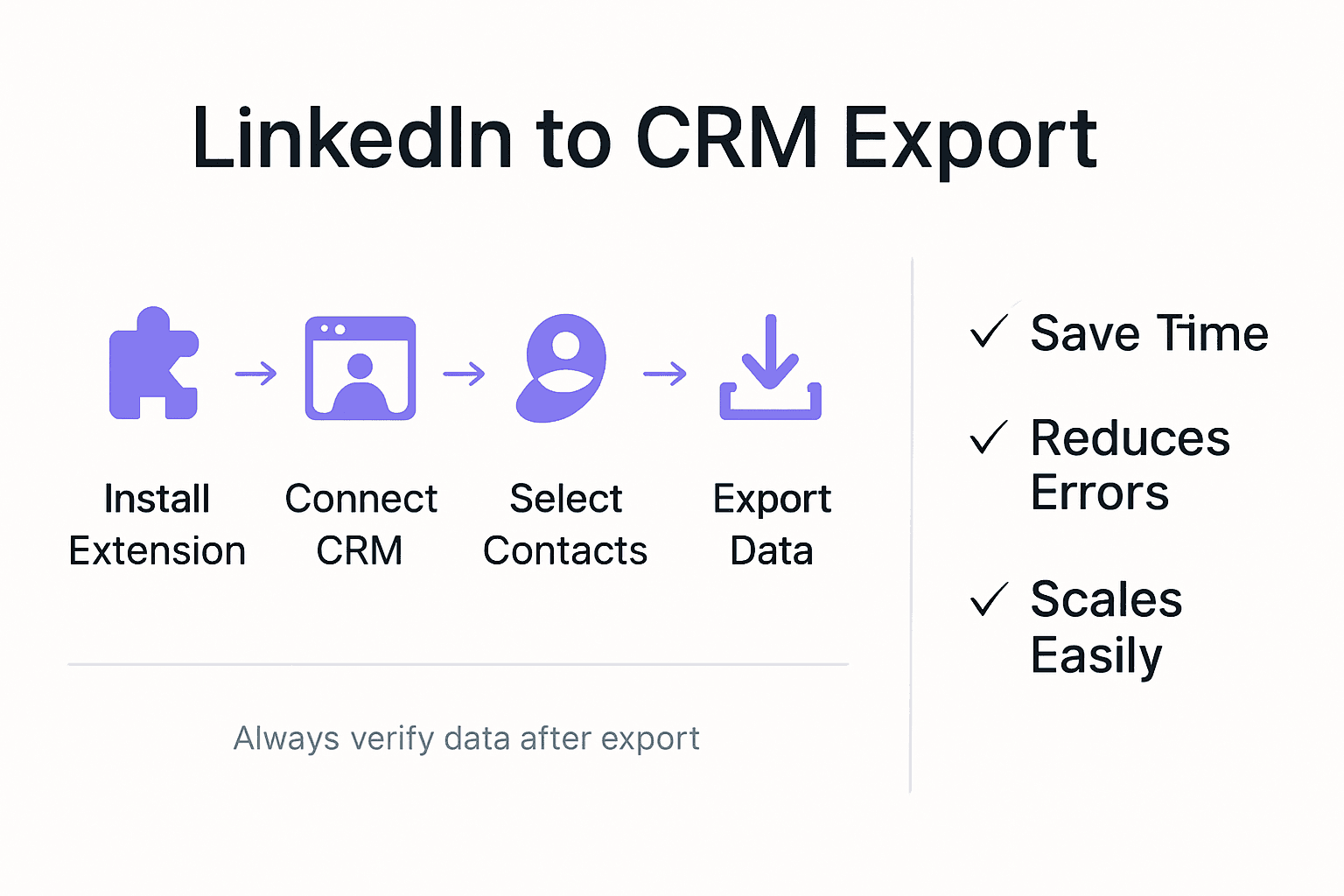
Activate the LeadLx extension and review the selected contact details one final time. The export process allows you to map specific data fields precisely where you want them in your CRM. Contact information management requires careful attention to detail when transferring between platforms. Click the export button and watch as the LeadLx extension instantly populates your CRM records with accurate professional contact information.
The export functionality supports bulk transfers for multiple contacts simultaneously, dramatically reducing the time spent on manual data entry. Your CRM will automatically update with comprehensive profile details including job titles, company information, email addresses, and additional data points. This automated workflow ensures your sales team always has the most current and relevant prospect information at their fingertips.
Pro Tip: Configure your CRM export settings to create automatic deduplication rules preventing redundant contact entries and maintaining a clean prospect database.
Step 5: Verify Exported Data Integrity
After exporting your LinkedIn contacts to the CRM, conducting a thorough data integrity check becomes crucial to ensure the accuracy and usefulness of your newly captured prospect information. This verification step prevents potential issues that could undermine your sales and marketing efforts.
Maintaining CRM data quality involves establishing robust validation workflows that systematically review exported information. Start by comparing the exported LinkedIn profile data against your existing CRM records. Check for complete contact details including full name, job title, company name, email address, and any additional relevant information. Pay special attention to potential duplicate entries or inconsistent data formatting that might have occurred during the transfer process.
Pro Tip: Create a quarterly data hygiene routine that includes systematic review and cleaning of your CRM contacts to maintain optimal data quality and reliability.
Unlock Seamless LinkedIn to CRM Data Export with LeadLx
If you struggle with time-consuming manual data entry and worry about maintaining clean, accurate contact information in your CRM, you are not alone. The article “Automated Data Export Tutorial for LinkedIn to CRM” highlights common challenges like tedious manual capture, duplicate entries, and misaligned data fields that drain your productivity and imperil your prospecting workflow. LeadLx directly solves these pain points by offering an integrated browser extension that overlays HubSpot and Salesforce data right onto LinkedIn profiles. This eliminates constant tab switching and enables automatic capture and one-click export of contact details to your CRM.
With LeadLx, you gain
- Real-time synchronization for up-to-date prospect records
- Bulk extraction of contact info from LinkedIn search results saving hours
- Automated deduplication to keep your database reliable
- Streamlined workflows tailored for sales and marketing teams
Experience firsthand how LeadLx cuts down repetitive manual work so you can focus on closing deals instead of chasing data. Reduce errors, improve collaboration, and reclaim roughly 10 hours every week.
Ready to transform LinkedIn prospecting with flawless CRM integration Watch your pipeline grow as accurate LinkedIn data flows directly into your CRM through our powerful platform Start now at LeadLx and take the first step toward sales efficiency and smarter lead management. Explore more about how to integrate LinkedIn with your CRM seamlessly in our Automated Data Export Tutorial for LinkedIn to CRM.
Frequently Asked Questions
How do I install the LeadLx extension for LinkedIn?
To install the LeadLx extension, open the Chrome Web Store and search for LeadLx. Click the “Add to Chrome” button, review the permission request, and confirm by clicking “Add extension” to complete the installation process.
What CRM platforms can I connect to LeadLx?
LeadLx supports such CRM platforms as HubSpot and Salesforce. Choose your specific CRM in the extension settings and use your administrative credentials for authentication to establish a seamless connection.
How do I capture LinkedIn data using LeadLx?
To capture data, navigate to a LinkedIn profile or search results page and the LeadLx extension will highlight extractable contact details.
What should I verify after exporting data to my CRM?
After exporting, verify the accuracy of the data by comparing it to your existing CRM records. Check for missing details, duplicates, or inconsistent formatting to ensure the quality of your prospect information.
Can I export multiple contacts at once using LeadLx?
Yes, LeadLx allows you to export multiple contacts simultaneously, which significantly reduces the time spent on manual data entry. To use this feature, simply select the desired contacts and click the export button in the extension.
What are some best practices for maintaining CRM data quality?
Maintain CRM data quality by regularly reviewing and cleaning your contact database. Establish a quarterly data hygiene routine to identify duplicates, assess formatting, and ensure that all contact details are accurate and up-to-date.
Recommended
- Time-Saving Prospecting Methods for Efficient Lead Capture
- Prospecting Process Optimization: Boost Sales Efficiency Fast
- Complete Guide to LinkedIn CRM Integration
- Contact Information Management Tutorial for CRM Success
- Top Sotsiaalmeedia Haldustööriistad – Parim Valik 2025 | W3B.ee – Veebilehed, e-poed, turundus