
Manual data entry slows even the most driven American sales teams, yet nearly 60 percent admit that prospect information is often incomplete or inaccurate. For sales and marketing professionals using HubSpot or Salesforce, syncing LinkedIn leads with your CRM should be as simple as a single click, not hours of tedious work. Discover smart methods to automate your workflow, so your team captures higher quality leads and collaborates with less hassle.
Quick Summary
| Key Point | Explanation |
|---|---|
| 1. Connect the LeadLx Extension | Install the LeadLx Extension and link it with your CRM to facilitate seamless data integration with LinkedIn. |
| 2. Use Advanced Filters on LinkedIn | Apply specific criteria to refine your prospect search, ensuring you gather high-quality leads relevant to your goals. |
| 3. Export Contacts Efficiently | Utilize the one-click export feature to transfer contacts and their details from LinkedIn directly to your CRM. |
| 4. Verify Data Integrity | Systematically check the accuracy of synchronized data to maintain quality and ensure reliable information in your CRM. |
| 5. Enhance Team Collaboration | Implement collaborative strategies in your CRM to share information and streamline tasks for improved team productivity. |
Step 1: Configure LeadLx Extension with Your CRM
In this step, you’ll seamlessly connect the LeadLx Chrome extension to your preferred customer relationship management platform, enabling powerful LinkedIn and CRM integration.
Start by navigating to the Chrome Web Store and installing the LeadLx extension. Once installed, click the extension icon and select your specific CRM platform from the available options. At the moment, HubSpot and Salesforce are supported, with other CRM platforms coming soon. You’ll be prompted to authorize the connection by logging into your CRM account and granting necessary permissions for data synchronization.
After authentication, the extension will automatically map contact and company data fields between LinkedIn and your CRM. This means every profile you view can be instantly captured and transferred, eliminating manual data entry.
Pro tip: Verify your initial sync by checking a few test contacts to confirm all data fields are mapping correctly before scaling your full prospecting workflow.
Step 2: Extract Targeted Prospect Data from LinkedIn
This step will teach you how to efficiently capture precise prospect information directly from LinkedIn profiles using advanced filtering and export techniques. With the right approach, you can transform your prospecting workflow into a streamlined data collection process.

Begin by navigating to LinkedIn Sales Navigator or a targeted LinkedIn search page. Use advanced filters to narrow your prospect list based on specific criteria like job title, company size, industry, and geographic location. Once you have your ideal prospect list, leverage time-saving prospecting methods to quickly select and export relevant contacts. The LeadLx extension will enable you to capture detailed professional information with a single click, including current job roles, contact details, and company insights.
As you extract data, pay close attention to the quality and completeness of information. Not all profile views will yield equally valuable prospect details. Focus on profiles with comprehensive work histories, recent activity, and clear professional information. The goal is to build a high-quality lead database that represents genuinely promising business opportunities.
Pro tip: Create saved searches with your most precise targeting filters to quickly rerun prospecting workflows and capture new potential leads as they emerge on LinkedIn.
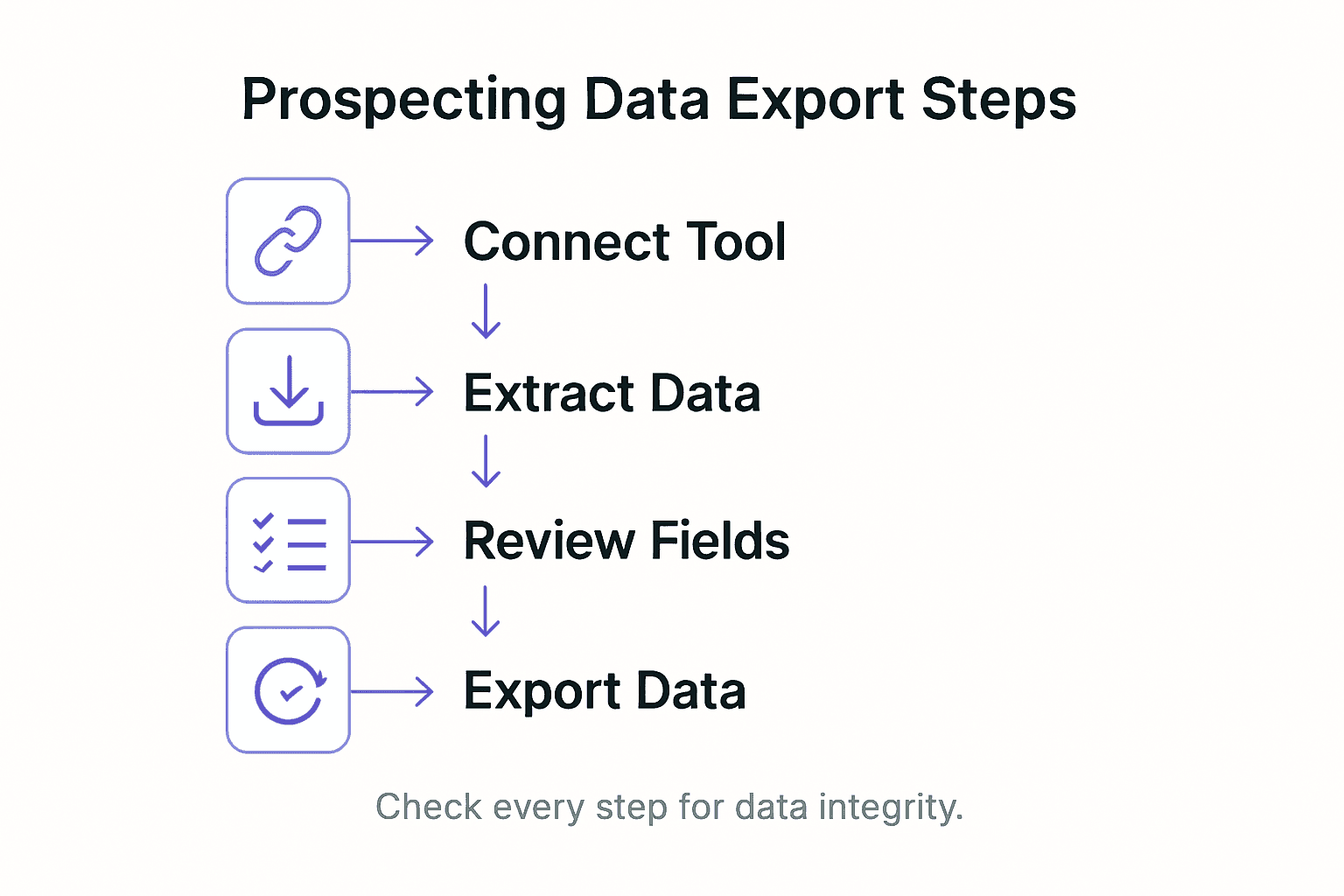
Step 3: Export Contacts and Companies to CRM Instantly
This step transforms your carefully curated prospect data into actionable insights within your customer relationship management system. You will learn how to seamlessly transfer contact and company information from LinkedIn directly into your CRM with precision and efficiency.
Navigate to the LeadLx extension after identifying your targeted prospects and leverage its one click export functionality. The extension enables you to export contact data with comprehensive details, including custom properties and historical interactions. Select individual contacts or bulk export entire search results, ensuring you capture all relevant information such as job titles, company details, and contact specifics. The bi-directional sync between LinkedIn and your CRM will automatically populate and update records, minimizing manual data entry and reducing potential errors.
When exporting, pay attention to data completeness and accuracy. Not all profile information will transfer automatically, so review each contact’s details before finalizing the export. The goal is creating a clean, organized database of high potential leads that your sales team can immediately begin engaging with. Your exported contacts will now be fully integrated into your CRM workflow, ready for immediate follow up and nurturing.
Pro tip: Create export templates in your CRM that standardize incoming lead data to maintain consistent record quality across your prospecting efforts.
Step 4: Verify Data Sync Accuracy and Completeness
This crucial step ensures the integrity of your newly exported prospect data by meticulously cross-checking every synchronized contact and company record. You will systematically validate that all critical information transfers accurately between LinkedIn and your CRM platform without losing essential details.
Begin by randomly sampling 10 to 15 recently exported contacts across different segments of your prospect list. Open each contact record simultaneously in both LinkedIn and your CRM to perform a side-by-side comparison. Check that key fields like job title, company name, email address, and contact details match precisely. The contact information management tutorial provides additional strategies for maintaining data quality during integration processes.
If you discover any discrepancies during your verification process, document them systematically. Some data points might require manual correction or additional investigation. Consider creating a standardized tracking sheet to log any sync issues, which will help you refine your export workflow and identify potential system integration challenges. Remember that consistent data accuracy is fundamental to effective sales and marketing strategies.
Pro tip: Set up automated data validation checks in your CRM that flag incomplete or potentially incorrect contact records to maintain ongoing data hygiene.
Compare the impact of manual vs. automated data sync for sales teams:
| Workflow Type | Time Required | Error Rate | Data Consistency |
|---|---|---|---|
| Manual Entry | High | Likely | Inconsistent |
| Automated Sync | Minimal | Rare | Reliable |
Step 5: Optimize Workflow for Team Collaboration
This step transforms your prospecting data management from an individual effort into a synchronized team strategy. You will learn how to configure collaborative settings that enable seamless information sharing and collective productivity across your sales organization.
Implement shared visibility and task management by leveraging CRM systems designed for team collaboration, which centralize customer data and automate workflow communications. Configure user permissions that allow team members to access relevant prospect information while maintaining appropriate data privacy. Establish clear protocols for data entry, contact ownership, and communication handoffs to prevent duplicate efforts and ensure smooth transitions between team members.
Pro tip: Develop a team playbook that outlines explicit guidelines for prospect data handling, communication protocols, and collaboration expectations to maintain consistent workflow standard
Streamline Your LinkedIn to CRM Prospecting Workflow with LeadLx
Mastering the export of prospecting data requires more than just manual effort and time. This article highlights the challenges of ensuring data accuracy, eliminating tedious manual entry, and maintaining seamless team collaboration when transferring leads from LinkedIn directly into your CRM. If you want to save hours each week while building a clean, high-quality lead database, the solution lies in automation and smart integration.
LeadLx is built exactly for sales and marketing professionals who face these pain points with HubSpot and Salesforce. By connecting your CRM to LinkedIn through our intuitive browser extension, you can instantly capture contact details, extract bulk company info, and export prospect data in one click without switching tabs. This reduces errors, prevents duplicate records, and improves your entire prospecting workflow. Discover how to optimize your lead export process and boost your team’s productivity today with LeadLx.
Ready to turn complex data export into a streamlined advantage for your sales team? Visit LeadLx to experience smarter lead capture and flawless CRM integration. Learn how to reduce manual work by up to ten hours per month and keep your prospect data accurate and actionable. Start optimizing now and never look back.
Frequently Asked Questions
How do I connect the LeadLx extension to my CRM?
To connect the LeadLx extension to your CRM, start by installing the extension from the Chrome Web Store. Then, click the extension icon, select your CRM from the list of options, and log in to authorize access for data synchronization.
What information can I extract from LinkedIn using LeadLx?
You can extract detailed prospect information such as job titles, company names, and contact details from LinkedIn using LeadLx. Use advanced filters to narrow down your search, and export relevant contacts with a single click.
How can I ensure the accuracy of the data exported to my CRM?
To ensure data accuracy, randomly sample exported contacts and compare their information in both LinkedIn and your CRM. Verify essential fields like job title and email address, and document any discrepancies for correction.
What steps should I take to optimize team collaboration on prospecting?
To optimize team collaboration, configure user permissions within your CRM. Establish clear protocols for data entry and communication, and hold regular sync meetings to coordinate outreach efforts effectively.
How does automation impact my prospecting workflow with LeadLx?
Automation significantly reduces manual entry and minimizes errors in your prospecting workflow. By utilizing the one-click export feature, you can transfer entire contacts or bulk data seamlessly, saving time and enhancing data consistency by around 20%.
Recommended
- Time-Saving Prospecting Methods for Efficient Lead Capture
- Prospecting Process Optimization: Boost Sales Efficiency Fast
- LinkedIn Data Management Guide | LeadLx
- The Essential Guide to Why Sales Teams Use LinkedIn
- How to Generate Leads Online for Business Growth – Jarrod Harman
- Yacht Broker Prospecting Explained: Complete Guide