
Over 90 percent of American sales teams rely on CRM tools to manage leads and contacts, yet most still waste valuable time juggling multiple tabs or outdated information. The need for seamless integration between platforms is more urgent than ever for professionals who want to capture every opportunity on LinkedIn. This guide reveals how to connect LeadLx with your CRM, extract contact data with accuracy, and streamline your entire lead management process for better results.
Quick Summary
| Main Insight | Description |
|---|---|
| 1. Integrate LeadLx with Your CRM | Connect LeadLx to your CRM for efficient access to LinkedIn contacts without switching tabs. |
| 2. Configure the Extension for LinkedIn | Properly set up the LeadLx extension to enhance data extraction from LinkedIn profiles. |
| 3. Extract Contact Data Easily | Activate the extension to automatically capture essential contact details from LinkedIn profiles. |
| 4. Sync Data to Your CRM Automatically | Export extracted data seamlessly to your CRM, ensuring records are current and accurate. |
| 5. Verify and Clean Your CRM Data | Run duplicate checks and validate information to maintain data integrity and effectiveness in outreach. |
Step 1: Set Up LeadLx and Integrate Your CRM
Transforming your sales workflow begins with seamlessly connecting LeadLx’s Chrome extension to your existing CRM system. This process will help you instantly access and manage contact information directly from LinkedIn without constant tab switching.
Start by installing the LeadLx Chrome extension from the Web Store. Once installed, navigate to your HubSpot account and authorize the data integration features that will enable automatic contact synchronization. The extension works by overlaying HubSpot and Salesforce data onto LinkedIn profiles, allowing you to quickly view existing customer information and update records with a single click.
Pro tip: Before fully integrating, review your existing contact database to ensure clean data and prevent potential duplicate entries. The smart syncing capabilities of LeadLx are designed to minimize redundant information, but a preliminary audit will optimize your workflow. With the integration complete, you are now ready to streamline your prospecting and lead management processes.
Step 2: Configure Browser Extension for LinkedIn
Configuring the LeadLx browser extension requires strategic setup to maximize your LinkedIn data extraction capabilities. The HubSpot Chrome extension provides seamless integration that transforms how you capture and manage professional contact information.
Start by clicking the extension icon in your Chrome browser and logging into your CRM account. You will need to grant specific permissions that allow the extension to access LinkedIn profile data and synchronize information with your existing contact records. Efficient prospecting methods become significantly easier as the extension automatically overlays relevant customer information directly on LinkedIn profiles, reducing manual data entry and potential errors.
Pro tip: Verify your browser settings and ensure pop-ups are enabled for the LeadLx extension. Review your privacy and data synchronization preferences carefully to maintain professional data handling standards. With the extension properly configured, you are now ready to streamline your lead generation workflow and extract contact information with unprecedented efficiency.
Step 3: Extract Contact Data from LinkedIn Profiles
Mastering contact data extraction transforms your prospecting workflow by turning LinkedIn profiles into actionable sales intelligence. LinkedIn data management becomes dramatically more efficient when you leverage Chrome extension capabilities that instantly capture professional details.
To extract contact information, navigate to a specific LinkedIn profile and activate the LeadLx extension. The tool will automatically scan the profile and highlight extractable data fields including name, job title, email address, and company information. With real time blog insights from sales professionals, you can verify and validate the captured information before synchronizing it directly into your CRM system.

Pro tip: Always cross reference extracted contact details with existing records to prevent duplicate entries and maintain data integrity. The extraction process works best when you have a clear view of the entire LinkedIn profile and have granted necessary browser permissions. By systematically capturing contact information, you transform scattered online connections into a structured sales pipeline ready for targeted outreach.
Step 4: Sync and Export Data to Your CRM
Successfully syncing contact data from LinkedIn to your CRM requires precision and strategic execution. Outbound prospecting strategies become exponentially more powerful when your contact information moves seamlessly between platforms without manual intervention.
Initiate the synchronization process by selecting the LinkedIn contacts you want to export. The LeadLx extension will automatically map extracted data fields to corresponding CRM record attributes like name, email, job title, and company details. This automated workflow ensures that your contact records remain current and comprehensive, eliminating redundant data entry and potential human error.
Pro tip: Before finalizing the export, review your selected contacts to confirm accuracy. Verify that critical information is correctly populated and that no duplicate records will be created. By meticulously managing your data transfer process, you transform scattered LinkedIn connections into a structured sales pipeline ready for targeted engagement.
Step 5: Verify Data Accuracy and Eliminate Duplicates
Ensuring the integrity of your CRM data is crucial for maintaining effective sales and marketing workflows. Lead scoring techniques provide a systematic approach to validate and prioritize contact information during the data integration process.
Begin by running a comprehensive duplicate check across your CRM system. LeadLx offers automated matching algorithms that compare incoming LinkedIn contact data against existing records using multiple identifiers such as email address, company name, and job title. Pay close attention to partial matches and potential variations in contact information that might indicate the same individual but with slightly different data points.
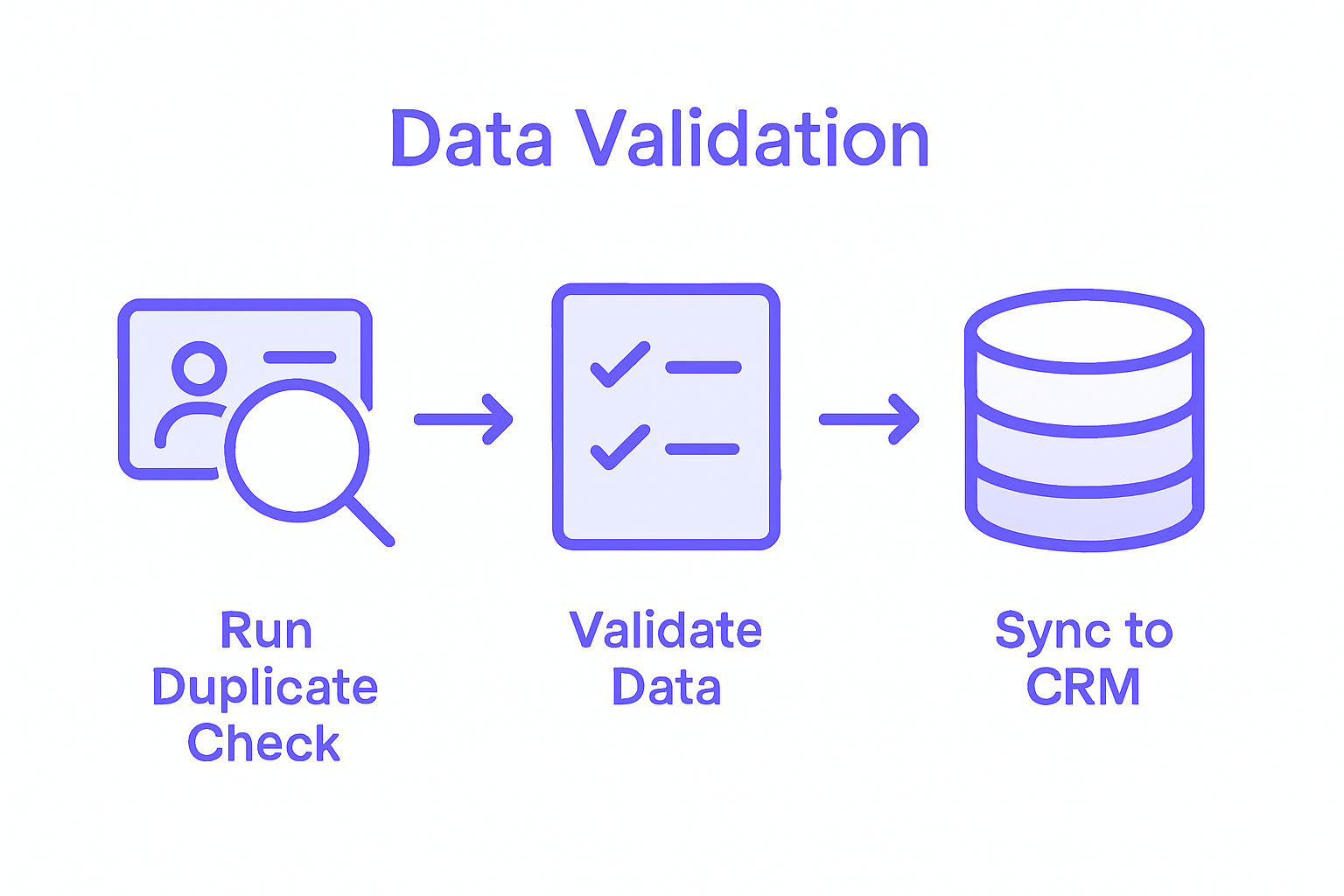
Pro tip: Implement a standardized data validation protocol that includes manual review for complex or ambiguous entries. Establish clear rules for merging or keeping separate contact records based on your organization’s specific requirements. By meticulously cleaning and organizing your contact database, you create a reliable foundation for targeted communication and more effective sales strategies.
Unlock Seamless Contact Data Extraction for CRM Success with LeadLx
If you struggle with manual data entry, duplicate contacts, or switching between LinkedIn and your CRM, you are not alone. The “Contact Data Extraction Guide for CRM Success” highlights these common challenges and the need for accurate, efficient data synchronization to power your sales pipeline. Imagine reducing hours of repetitive work and improving data accuracy while growing your leads more confidently.
LeadLx is designed exactly for these pain points. Our platform integrates LinkedIn with CRM tools like HubSpot and Salesforce, providing a Chrome extension that overlays CRM data directly onto LinkedIn profiles. This lets you instantly extract contact details, verify information to prevent duplicates, and update records with just one click — all without leaving your browser.
Take control of your prospecting and CRM data management today by visiting LeadLx’s homepage. Discover how easy it is to set up your HubSpot integration with our CRM contact synchronization guide. Learn more about optimizing your LinkedIn outreach with our HubSpot Chrome extension setup. Start saving time and improve your sales workflows now at LeadLx.
Frequently Asked Questions
How do I set up the LeadLx Chrome extension with my CRM?
To set up the LeadLx Chrome extension, first install it from the Chrome Web Store. Then, authorize the data integration features with your CRM account to enable automatic contact synchronization.
What is the process to configure the LeadLx extension for LinkedIn?
To configure the LeadLx extension, click its icon in your Chrome browser and log into your CRM account. Grant the necessary permissions to access LinkedIn data and sync it with your contact records for efficient prospecting.
How can I extract contact data from LinkedIn profiles using LeadLx?
To extract contact data, navigate to a LinkedIn profile and activate the LeadLx extension. It will scan the profile and highlight key data fields like name, job title, and email address that you can capture directly.
What steps should I take to sync data from LinkedIn to my CRM?
Select the LinkedIn contacts you want to export through the LeadLx extension, which will automatically map the data fields to your CRM. Ensure that all critical information is accurate and that you avoid creating duplicate records before finalizing the export.
How do I verify the accuracy of extracted contact data in my CRM?
To verify data accuracy, run a duplicate check using automated matching algorithms to compare new contact data against existing records. Establish a protocol for manual reviews of complex entries to ensure data integrity and reliability within your sales processes.
What should I do if I find duplicate contact records in my CRM?
If you find duplicate records, implement a method to merge or manage them based on your organization’s criteria. Use standardized rules to evaluate which contact information should be retained to maintain a clean and effective database.