
Over 60 percent of American sales professionals say manual data entry adds hours to their weekly workload. The constant back and forth between LinkedIn and CRM systems can slow down even the most organized teams. With new tools like LeadLx, American sales experts can finally automate and simplify their process, gaining more time for building real connections. Discover how seamless integration helps you eliminate common bottlenecks and upgrade your workflow from start to finish.
Quick Summary
| Key Point | Explanation |
|---|---|
| 1. Install LeadLx for Integration | Download the LeadLx Chrome extension to connect LinkedIn and your CRM for seamless data transfer. |
| 2. Strategically Filter Contacts | Define your ideal customer profile using filters such as job title and company size to find valuable leads efficiently. |
| 3. Utilize One Click Export Feature | Capture and export relevant LinkedIn data directly to your CRM, minimizing manual data entry and improving accuracy. |
| 4. Conduct Data Verification | Review exported information carefully to ensure completeness and correctness, preventing data quality issues in your CRM. |
| 5. Test Data Transfer Process | Perform a small test transfer to identify potential mapping errors before executing a larger data migration to your CRM. |
Step 1: Set Up LeadLx for LinkedIn and CRM Integration
Unlocking seamless data transfer between LinkedIn and your CRM starts with installing the LeadLx Chrome extension. This powerful tool transforms your prospecting workflow by embedding HubSpot or Salesforce data directly into LinkedIn profiles without constant tab switching.
To begin, navigate to the Chrome Web Store and download the LeadLx extension. Once installed, log into your LinkedIn and CRM accounts to establish the connection. The extension will automatically sync your existing contact data and enable one click export of profile information. Professional sales teams appreciate how LeadLx eliminates manual data entry by automatically capturing company details, contact information, and professional insights directly from LinkedIn profiles.
Pro tip: Before finalizing your setup, verify that your HubSpot or Salesforce credentials are correctly entered. This ensures smooth data synchronization and prevents potential integration hiccups. By taking a few extra minutes to configure your settings precisely, you will save hours of manual data management down the line.
Step 2: Select Relevant LinkedIn Contacts and Companies
Narrowing down the most valuable LinkedIn contacts and companies requires strategic filtering and precise targeting. With LeadLx, you can leverage advanced selection tools to quickly identify prospects that align perfectly with your sales objectives. Automatic data capture features transform your prospecting workflow by eliminating manual search and assessment processes.
Begin by defining your ideal customer profile within the LeadLx interface. Focus on key parameters such as job title, company size, industry, and geographic location. The extension allows you to apply multiple filters simultaneously, enabling you to create highly refined search criteria. As you browse LinkedIn search results or individual profiles, use the LeadLx browser extension to instantly preview contact details and company information before deciding to export.
Pro tip: Always validate contact information before bulk export. While automation streamlines the process, a quick manual review ensures data accuracy and prevents potential communication gaps with high potential leads. Take an extra moment to confirm critical details like current job role and company affiliation to maintain the integrity of your CRM database.
Step 3: Extract Accurate Data Using LeadLx Tools
Mastering data extraction from LinkedIn requires precision and efficiency. LeadLx offers powerful tools designed to capture accurate profile information directly from LinkedIn profiles, eliminating the tedious process of manual data entry. The browser extension seamlessly integrates with your workflow, allowing instant capture of contact details, professional insights, and company information.

To begin extracting data, activate the LeadLx extension while viewing a LinkedIn profile. The tool automatically highlights extractable information fields such as name, job title, company, email, and contact details. Use the one click export feature to transfer selected data directly into your CRM system. Pay close attention to the preview screen which allows you to customize and verify each data point before final export.
Pro tip: Always cross reference extracted information with the original LinkedIn profile to ensure maximum accuracy. While automation significantly reduces manual work, a quick visual verification can prevent potential data inconsistencies that might impact your sales and marketing efforts. By taking a moment to validate each record, you will maintain a high quality contact database that drives more effective business communication.
Step 4: Verify and Clean Exported Data for CRM
Ensuring the highest quality of data requires a meticulous approach to verification and cleaning. LeadLx simplifies this process by offering advanced profile enrichment features that automatically validate and supplement contact information before syncing to your CRM system. This critical step eliminates incomplete or inaccurate records that could compromise your sales and marketing efforts.
Start by reviewing each exported contact record in the LeadLx preview interface. Check for completeness across key fields including full name, job title, company name, email address, and phone number. The platform provides intelligent suggestions to fill in missing information or correct potential errors. Pay special attention to email domains and professional titles to ensure they align with the LinkedIn profile you originally extracted.
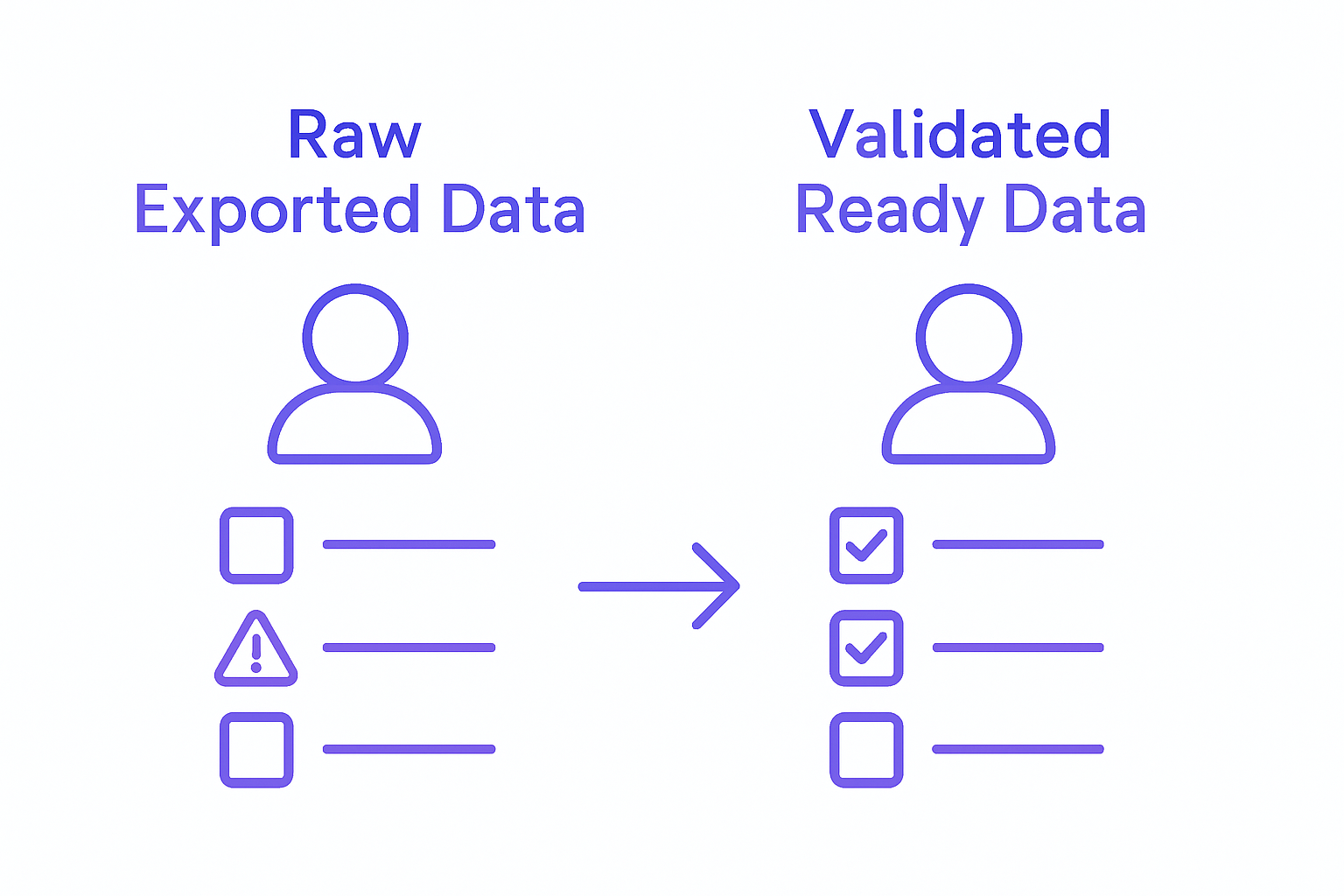
Pro tip: Create a quick validation workflow where you spot check at least 10% of your exported contacts against their original LinkedIn profiles. This random sampling approach helps maintain data integrity without becoming overly time consuming. By implementing a consistent verification process, you will build a robust CRM database that supports more targeted and effective communication strategies.
Step 5: Transfer Data Seamlessly into HubSpot or Salesforce
Transferring contact data from LeadLx to your CRM platform represents the final critical step in streamlining your sales workflow. Connecting your CRM platform enables automatic data synchronization that eliminates manual entry and reduces potential human error. LeadLx supports seamless integration with both HubSpot and Salesforce, ensuring a smooth transfer process for sales professionals.
To initiate the transfer, navigate to the export settings within the LeadLx interface. Select your target CRM platform and authorize the connection using your existing credentials. The platform will automatically map relevant data fields to ensure accurate information transfer. Review the preview screen carefully to confirm that contact details such as name, email, job title, and company information will be correctly imported into the appropriate CRM record.
Pro tip: Before performing a large bulk transfer, run a test with a small batch of contacts to verify the integration works correctly. This approach allows you to identify and resolve any potential mapping issues or data inconsistencies before executing a full scale data migration. By taking a methodical approach, you will ensure your CRM remains clean, organized, and primed for effective sales outreach.
Step 6: Confirm Synchronization and Data Integrity
Ensuring complete and accurate data transfer requires a comprehensive verification process. LeadCRM’s synchronization setup provides critical checkpoints to validate your integration and maintain data quality across platforms. This final step confirms that every contact detail has been correctly migrated from LinkedIn to your CRM system without loss or corruption.
Begin by conducting a systematic review of recently synchronized records. Open both your LinkedIn profile view and CRM contact record simultaneously to cross reference key information. Pay special attention to nuanced details like job titles, email addresses, and company names.
Pro tip: Create a random sampling protocol where you manually verify at least 15% of transferred contacts. This statistical approach helps identify potential synchronization patterns or recurring translation errors without requiring exhaustive line by line inspection. By implementing this verification strategy, you will build confidence in your data migration process and ensure your sales team works with the most accurate and up to date contact information possible.
Streamline Your CRM Integration with LeadLx
The guide on Efficient Data Export for CRM Integration Success reveals the challenges that sales and marketing teams face when manually transferring LinkedIn data into CRMs like HubSpot and Salesforce. Pain points such as time-consuming manual entry, verifying contact accuracy, and preventing duplicate records can drain valuable productivity and introduce costly errors. LeadLx addresses these issues head on by offering a browser extension that overlays CRM data directly onto LinkedIn profiles, automates contact extraction, and enables one-click export to your CRM system.
Stop wasting hours on repetitive tasks and start focusing on what matters most—connecting with qualified leads. With features that automatically capture and enrich contact details, LeadLx ensures your CRM data stays clean and up to date, boosting your team’s prospecting efficiency and collaboration. Discover how you can eliminate manual data entry frustrations and streamline your sales workflow by exploring the LeadLx platform and learning more about getting started with LeadCRM.
Ready to transform your LinkedIn prospecting and CRM integration process? Visit LeadLx now to experience seamless data export that saves you time, improves accuracy, and drives sales success.
Frequently Asked Questions
How do I install the LeadLx Chrome extension for CRM integration?
To install the LeadLx Chrome extension, visit the Chrome Web Store and download it. After installation, log into your LinkedIn and CRM accounts to establish a connection and allow for seamless data synchronization.
What steps should I take to select the right LinkedIn contacts using LeadLx?
Begin by defining your ideal customer profile within the LeadLx interface, focusing on job title, company size, industry, and location. Utilize the advanced filtering tools to create a refined list of prospects that align with your sales objectives.
How can I ensure the accuracy of data extracted using LeadLx?
To ensure accuracy, cross-reference the extracted data with the original LinkedIn profiles. Perform a visual verification to catch any inconsistencies, which can help maintain a high-quality contact database.
What should I do to clean and verify exported data before transferring it to my CRM?
Review each exported contact in the LeadLx preview interface for completeness and correctness of key fields. Create a simple validation workflow to spot-check at least 10% of the contacts against their original profiles to maintain data integrity.
How do I transfer contact data into HubSpot or Salesforce using LeadLx?
To transfer data, access the export settings in the LeadLx interface and select your CRM platform. Authorize the connection, and carefully review the mapping of data fields to ensure accurate data import into your CRM records.
What verification methods should I use after synchronizing data with my CRM?
Conduct a systematic review of recently transferred records by comparing key information in both LinkedIn and your CRM. Implement a random sampling protocol to manually verify at least 15% of contacts to identify any discrepancies and ensure data accuracy.
Recommended
- Time-Saving Prospecting Methods for Efficient Lead Capture
- Contact Information Management Tutorial for CRM Success
- LeadLx Blog: LinkedIn Outreach, CRM Efficiency & Insights
- LinkedIn Data Management Guide | LeadLx
- Understanding the Importance of Customer Communication – My WordPress
- TrafficID Review by Brandwell: Revolutionizing Lead Generation 🚀 – WordsAtScale