
Every sales professional who relies on LinkedIn knows the pain of switching between tabs and retyping contact details into HubSpot or Salesforce. This manual routine slows down your workflow and opens the door to mistakes that can stall your pipeline. With a tool like LeadLx for seamless LinkedIn to CRM integration, you finally get a process that captures key data instantly and keeps your records accurate—so you can spend less time entering information and more time reaching real prospects.
Quick Summary
| Main Insight | Explanation |
|---|---|
| 1. Install the LeadLx Extension | Quickly set up the extension for smooth integration between LinkedIn and your CRM. |
| 2. Connect to Your CRM | Authorize HubSpot or Salesforce to ensure captured data syncs properly and securely. |
| 3. Target Quality Prospects | Define your ideal customer profile to enhance lead quality and reduce clutter in your CRM. |
| 4. Verify and Update Data | Regularly check and update contact information to maintain accuracy and reliability in your CRM. |
| 5. Use Batch Exporting | Streamline the process by exporting multiple contacts at once, saving significant time for your team. |
Step 1: Set Up Your LeadLx Browser Extension
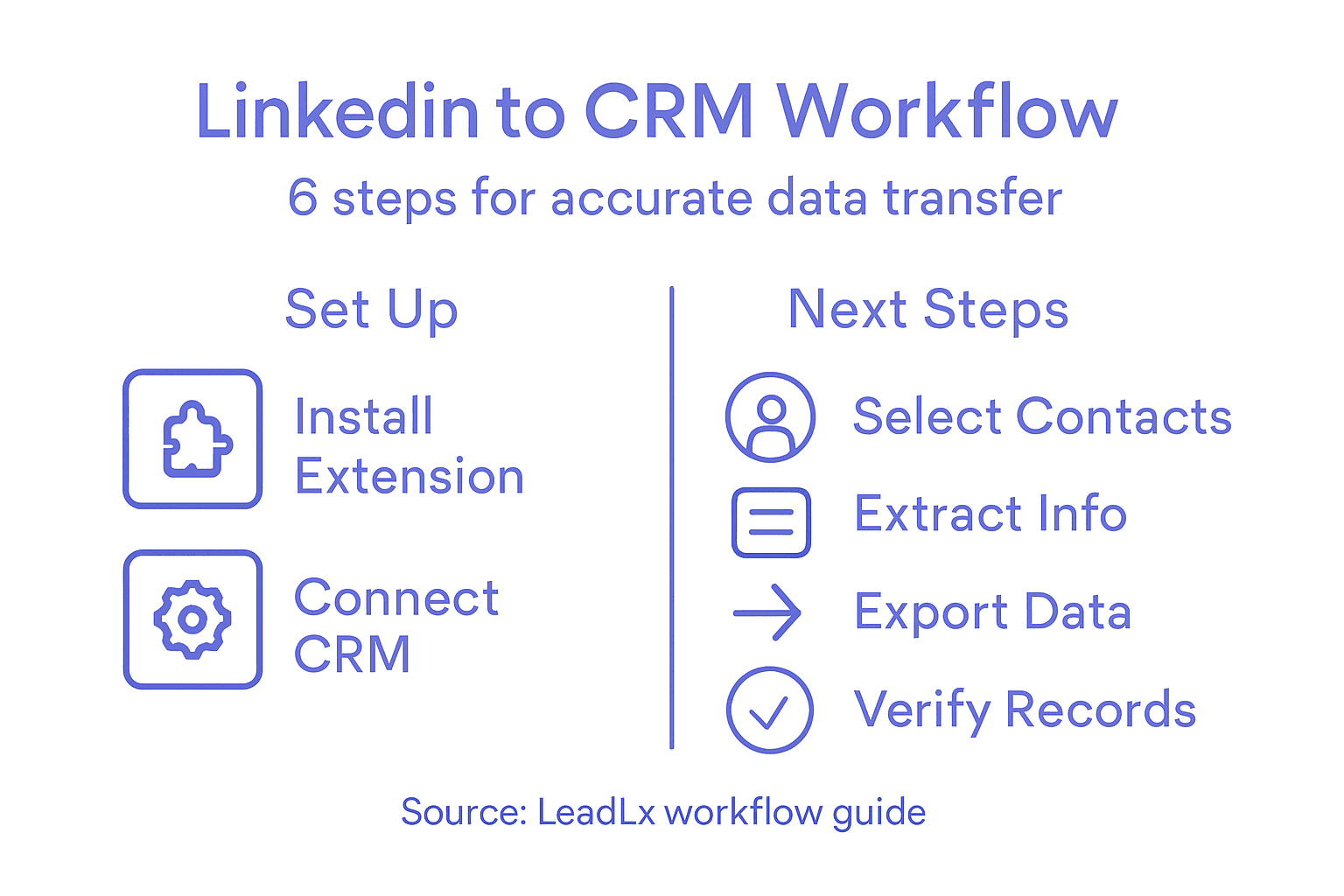
Setting up the LeadLx browser extension takes just a few minutes and opens the door to seamless LinkedIn to CRM integration. You’ll install the extension directly into your browser, authenticate your account, and configure the initial settings that connect your LinkedIn activity to your CRM system. This is the foundation that eliminates manual data entry and keeps your sales pipeline current without the constant tab switching.
Start by visiting the official LeadLx website or your browser’s extension store. If you’re using Chrome or another Chromium-based browser, you’ll find LeadLx available in the Chrome Web Store. Click “Add to Chrome” and grant the necessary permissions when prompted. The extension needs access to LinkedIn pages to capture profile data and company information. When the installation completes, you’ll see the LeadLx icon appear in your browser’s extension toolbar at the top right of the screen. Firefox users can follow the same process through Firefox’s add-on marketplace, as configuring extensions for Chromium-based browsers and Firefox ensures compatibility across different environments.
Next, click the LeadLx icon to open the extension popup and log in with your LeadLx account credentials. If you don’t have an account yet, you’ll need to create one on the LeadLx website first. After logging in, the extension will prompt you to connect your CRM system, whether that’s HubSpot or Salesforce. Select your CRM platform and follow the authentication flow, which typically involves approving access to your CRM account through OAuth. Once authenticated, the extension will verify the connection and display a confirmation message. You’re now ready to start extracting contact information directly from LinkedIn profiles. The extension will overlay your CRM data onto LinkedIn, showing you whether a contact already exists in your system and what information you currently have on file.
Take a moment to review the extension settings to customize your preferences. Most users want to enable automatic capture of contact details when they view profiles, though you can disable this if you prefer manual selection. You might also want to set notification preferences so you’re alerted when duplicates are detected or when data syncs to your CRM. These small adjustments now save you from unexpected surprises later. The extension works invisibly in the background once configured, tracking your LinkedIn activity and preparing data for upload whenever you’re ready.
Pro tip: Before diving into LinkedIn prospecting, test the extension by visiting a profile you’re already familiar with and checking that all data captures correctly and syncs to your CRM. This quick validation ensures everything is working as expected and helps you spot any permission issues before you’re deep in your workflow.
Step 2: Connect LinkedIn With Your CRM Platform
Now that your LeadLx extension is installed and ready, it’s time to authorize the connection between LinkedIn and your CRM system. This step bridges the two platforms so data flows seamlessly from your LinkedIn prospecting activities directly into HubSpot or Salesforce. Without this connection, the extension won’t have the ability to store or update records in your CRM.
When you first open the LeadLx extension after installation, you’ll see a prompt asking you to select your CRM platform. Choose either HubSpot or Salesforce depending on which system your sales team uses. The extension will then redirect you to your CRM’s authorization page, where you’ll see a permission request asking LeadLx to access your account data. This is where OAuth 2.0 authentication enters the picture, providing a secure handshake between the two systems without requiring you to share your CRM password directly. Review the requested permissions, which typically include reading and writing contact records, adding custom fields, and syncing activity data. Click “Authorize” or “Allow” to proceed. Your CRM will then generate an authentication token that LeadLx stores securely, enabling future data exchanges without requiring repeated logins.
After authorization completes, you’ll return to the LeadLx extension interface where you can verify the connection status. Look for a confirmation message showing that your CRM account is successfully linked and the extension is ready to use. At this point, you may see additional configuration options such as selecting which lead or contact fields should sync automatically, setting default values for new records, or choosing whether to update existing contacts when you encounter them again on LinkedIn. Take a moment to review these settings if they appear. Most teams prefer to enable automatic updates so that when you view a profile you’ve previously saved, any new information gets captured and merged with the existing record rather than creating duplicates. Some users also want to designate a team owner or campaign tag that applies to all contacts imported through LeadLx, which helps with pipeline tracking and accountability.
Before you move forward with prospecting, verify that the connection is actually working by testing it with a single LinkedIn profile. Navigate to a LinkedIn profile, and you should see LeadLx data overlay appearing on the page, showing you whether this person already exists in your CRM. If you see the CRM information displaying correctly, your connection is live. If nothing appears or you get an error message, double check that you completed the authorization step fully. Sometimes browser cache causes issues, so try clearing your cache or opening an incognito window if you encounter problems. The connection should remain active indefinitely, though you may need to reauthenticate periodically if your CRM requires it for security reasons.
Pro tip: Map your most important custom fields in your CRM during setup so that when LeadLx captures LinkedIn data, it populates into the exact fields your sales team relies on for qualification and outreach, eliminating the need for manual data cleanup later.
Step 3: Identify and Select Target Contacts
With your LeadLx extension connected to your CRM, you’re ready to start identifying and selecting the specific LinkedIn profiles you want to add to your sales pipeline. This step is about being intentional with your prospecting rather than indiscriminately saving every profile you encounter. Quality targeting saves time, reduces data clutter in your CRM, and ensures your sales team focuses on genuine opportunities.

Start by defining your ideal customer profile before you begin searching on LinkedIn. Think about the company size, industry, job titles, and seniority levels that align with your product or service. Are you targeting directors at tech companies with 50 to 500 employees? Perhaps you focus on finance professionals in Fortune 500 firms. Having these criteria clear in your mind makes the selection process much faster when you’re browsing LinkedIn. Use LinkedIn’s search functionality to filter profiles based on location, industry, company name, and current role. As you narrow your search results, you’ll see multiple profiles that match your criteria. With LeadLx active, you can now view these profiles one by one and quickly assess whether each person is a genuine fit. The extension shows you instantly whether they already exist in your CRM, preventing duplicate entries and saving you from re-prospecting the same contact.
When you find a profile that matches your targeting criteria, you have two ways to proceed. You can manually select individual profiles by clicking the LeadLx button on each person’s LinkedIn profile page, which opens a modal window showing all the extracted information ready to be saved. Review the captured data to ensure accuracy before confirming the import. Alternatively, if you’re targeting a specific LinkedIn search result with multiple qualified prospects, you can use contact filtering and import based on predefined criteria to streamline the process. This approach works especially well when you’re running targeted campaigns or need to quickly onboard a list of people from a particular company or industry. LeadLx captures their name, current title, company, email address when available, phone number if listed publicly, and LinkedIn URL.
As you select contacts, pay attention to the data quality that LeadLx extracts. Some LinkedIn profiles are more complete than others. A director with a fully filled out profile gives you company information, email, and phone number. An entry level contact with a sparse profile might only provide their name and current employer. Both can be valuable depending on your sales strategy, but knowing what information you’re getting helps you prioritize. If LeadLx shows the contact already exists in your CRM, you can choose to update their record with fresh information or skip the import to avoid overwriting any notes your team may have added. This choice protects your CRM data integrity and respects any previous prospecting work.
Don’t feel pressure to import every contact you see. Selective prospecting creates a cleaner pipeline and prevents your sales team from being overwhelmed with low quality leads. A good rule of thumb is to import contacts only when you can clearly articulate why they’re valuable to your business right now. This intentional approach also makes follow up more personal and relevant because your team isn’t sifting through hundreds of random profiles.
Pro tip: Create a saved LinkedIn search for each of your key customer segments and check it weekly, importing only the newest profiles that meet your exact criteria, rather than doing sporadic broad searches that waste time deciding which contacts actually matter.
Step 4: Extract Contact and Company Information
Once you’ve identified and selected a target contact on LinkedIn, LeadLx automatically extracts their contact and company information in real time. This is where the extension proves its value by pulling structured data directly from the profile, eliminating the manual copying and pasting that wastes hours every month. The extraction happens instantly and accurately, capturing details you need for immediate CRM entry.
When you visit a LinkedIn profile with the LeadLx extension active, you’ll see a popup or side panel appear showing all available contact information. The extraction typically captures the person’s full name, current job title, company name, company industry, company domain, company size, and office locations. For email addresses and phone numbers, LeadLx extracts these when they’re publicly listed on the profile. Many professionals include their email in their headline or about section, making it readily available for extraction. The extension also identifies company-specific information such as the organization’s LinkedIn URL and employee count. This company data proves invaluable when you’re researching whether a prospect works for an organization that fits your ideal customer profile. If the person hasn’t included direct contact details on their profile, LeadLx intelligently attempts to locate their company email or phone through available public data sources.
The data extraction respects LinkedIn’s terms of service and legal boundaries around publicly available information. When extracting contact information, you’re working with data the person has chosen to share publicly on their profile, which means understanding the legal boundaries of data extraction from LinkedIn ensures your prospecting stays compliant. LeadLx only pulls information that’s visible to any LinkedIn user viewing the profile, avoiding any behind the scenes scraping that would violate platform rules. This approach protects your account and your company from potential legal or platform compliance issues.
Once the extraction is complete, you have an opportunity to review the captured data before finalizing the export to your CRM. Check the extracted email address to ensure it matches the format you’d expect for that company. Review the company information to confirm it’s current and accurate. Some LinkedIn profiles become outdated if people don’t update them regularly, so you may occasionally see a former employer listed. If you spot inaccurate information, you can manually edit the fields before saving to your CRM. This review step takes just seconds but prevents bad data from polluting your pipeline. After you’ve verified everything looks correct, click the save or export button to send the contact and company information directly to your CRM system. LeadLx handles the formatting automatically so the data flows into the correct fields in HubSpot or Salesforce without additional cleanup work.
The beauty of this extraction process is the consistency it brings to your CRM data. Every contact exported through LeadLx follows the same data structure, making your database searchable and reliable. You’re no longer dealing with variations in how people enter names, titles, or company information because the extraction standardizes everything. Over time, this consistency makes your sales team’s life easier when qualifying leads, running reports, or searching for contacts by company or industry.
Pro tip: Before importing a contact, quickly check if their company email follows a standard pattern by searching for another employee from that company in your CRM, then use that pattern to verify the extracted email is likely accurate rather than spending time validating each address individually.
Step 5: Export and Sync Data to CRM
You’ve extracted the contact and company information from LinkedIn. Now comes the final step that completes the entire workflow: exporting and syncing that data into your CRM system. This is where LeadLx transforms from a data collection tool into a productivity multiplier, automatically moving information from LinkedIn into HubSpot or Salesforce without manual intervention or copy-paste errors.
The export process begins the moment you approve the extracted contact information for import. With LeadLx, you don’t need to manually download files or navigate between systems. Instead, you simply click the export button within the extension, and the contact and company data flows directly into your CRM through a secure connection. The system uses your existing CRM authentication from Step 2, so no additional login or approval is required. LeadLx intelligently maps the extracted LinkedIn data to the corresponding fields in your CRM. Your contact’s name goes into the name field, their title maps to the job title field, company information populates the company field, and so on. If your CRM has custom fields you’ve configured, LeadLx can be set to populate those as well, ensuring the data lands exactly where your team expects it. The entire export typically completes within seconds, and you’ll see a confirmation message indicating the record has been successfully created or updated in your CRM.
One of the most powerful features of this process is the sync capability that goes beyond a simple one-time export. LeadLx can maintain ongoing synchronization with your CRM, meaning if you encounter the same LinkedIn contact multiple times, the extension recognizes they already exist in your system and offers to update their record with fresh information rather than creating a duplicate. This intelligent deduplication prevents a common CRM nightmare where the same person appears multiple times under slightly different name variations or company affiliations. When you select to update an existing contact, LeadLx merges the new LinkedIn data with what’s already in your CRM, preserving any notes or activity your sales team has already logged while refreshing outdated information. This data synchronization approach ensures records stay current and accurate without requiring manual cleanup or duplicate removal work.
After exporting a contact, check your CRM within a minute or two to confirm the record appears correctly. Navigate to your contacts or leads section and search for the person’s name. Verify that all the key information captured on LinkedIn now appears in your CRM with proper formatting. Look specifically at fields like email address, phone number, company name, and job title to ensure everything transferred accurately. If you notice any formatting issues or missing information, you can manually edit the record directly in your CRM. Some email addresses might need slight correction if LinkedIn’s display differed from the actual company email format. Once you’ve confirmed the data looks good, you’re done with that contact. Your sales team can now see this person in your CRM and begin their outreach workflow. The contact is visible to anyone on your team with appropriate access permissions, preventing duplicate outreach and enabling better collaboration.
For larger prospecting campaigns where you’re importing multiple contacts from a specific LinkedIn search or company, LeadLx offers batch export capabilities. Instead of exporting contacts one at a time, you can select multiple profiles from a LinkedIn search result and export them all to your CRM simultaneously. This dramatically accelerates your ability to build pipeline from targeted LinkedIn searches. A typical sales rep might spend two hours manually gathering contact information from LinkedIn and entering it into a CRM. Using LeadLx with batch export, that same work completes in under fifteen minutes. Multiply that time savings across your entire sales team, and you’re looking at recovering ten to twenty hours per month that can be redirected toward actual prospecting and relationship building.
Here is a comparison of manual LinkedIn prospecting versus using LeadLx:
| Aspect | Manual Prospecting | With LeadLx Extension |
|---|---|---|
| Data Entry | Copy-paste for each contact | One-click auto-export |
| Duplicate Prevention | Manual cross-checking | Built-in deduplication |
| Batch Import | Not possible | Export dozens at once |
| Data Mapping | User must match fields | Auto-mapped to CRM fields |
| Time Spent | 2+ hours for 10 contacts | 15 minutes for 10 contacts |
| Data Consistency | Prone to errors | Standardized format ensured |
Your CRM activity log will show when each contact was exported through LeadLx, creating an audit trail that helps your team understand where leads originated. This transparency proves valuable when analyzing which LinkedIn search strategies and targeting criteria produce the best quality leads. Over time, you’ll develop patterns around which types of profiles convert to customers, allowing you to refine your prospecting approach and focus on the most productive sourcing activities.
Pro tip: Set up a weekly review cycle where you export qualified contacts in batches every Friday rather than throughout the week, then assign all new contacts to appropriate sales reps at once, which reduces context switching and helps your team hit the ground running Monday morning with clear next steps for new prospects.
Step 6: Verify Accuracy and Update Records
Data flowing from LinkedIn into your CRM is only valuable if it’s accurate. This step focuses on quality control and ensuring that the information LeadLx extracted actually matches reality before your sales team acts on it. Bad data in your CRM creates confusion, wastes sales time, and damages your pipeline credibility. Verification takes just a few minutes per contact and prevents hours of downstream problems.
When a contact record first arrives in your CRM from LeadLx, treat it as a preliminary entry that needs validation before full activation. Start by reviewing the core fields that matter most for your outreach strategy. Check the email address first, since this is your primary communication channel. If the email looks suspicious like a placeholder or generic company format that doesn’t match the person’s actual role, do a quick LinkedIn profile review to confirm accuracy. Sometimes people list outdated email addresses on their profiles, and spotting these inconsistencies now prevents bounced messages later. Next, verify the job title and company name match what you see on the person’s current LinkedIn profile. People sometimes forget to update their LinkedIn when they change roles, so the profile might show a former employer. If you catch this discrepancy, update the CRM record immediately with their current company and position. These verification practices for maintaining accurate and reliable records form the foundation of trustworthy CRM data that your entire team can rely on.
Beyond the basic contact fields, review any company information that LeadLx captured. Check the company size, industry classification, and website URL to confirm they’re current. Company information changes less frequently than individual contact details, but it still deserves a quick verification. If LeadLx grabbed an outdated company size or the business recently shifted industries, update the record now. This accuracy matters when your marketing automation sends company specific messaging or when your sales team qualifies opportunities based on company characteristics. If you notice the contact’s company was recently acquired by another organization, this is exactly the type of information that warrants an immediate note in the CRM so your sales team understands the current organizational context.
For contacts exported in bulk from a targeted LinkedIn search, create a quick verification process rather than checking each record individually. Spot-check perhaps ten percent of the batch to identify any systematic data quality issues. If you find that most records in the batch have accurate information with only minor discrepancies, you can confidently move the rest into your active pipeline. If you discover widespread problems like extracted emails that don’t match company formats or outdated information, you might want to re-evaluate the source search or adjust LeadLx’s extraction settings before importing future batches from similar searches. This sampling approach balances quality control with efficiency.
Once you’ve verified a record and made any necessary corrections, update the contact status in your CRM to reflect that it’s ready for outreach. Some teams use a custom field like “Data Verified” or move contacts to a specific pipeline stage after verification. This flags the record as validated and ready for your sales team to action. It also creates accountability by showing which records have been quality checked and which might still have outstanding accuracy issues. When your sales rep picks up a contact marked as verified, they can confidently proceed with outreach rather than spending time double checking data.
Set up a regular cadence for reviewing and updating existing records as well. Sales moves fast, and contact information changes. Someone might get promoted, switch companies, or update their email address. Encourage your team to note these changes in the CRM when they discover them during outreach. Every few weeks, run a report showing your oldest imported contacts and spot-check them for accuracy. If you find that email addresses are bouncing or job titles have clearly changed based on LinkedIn activity, update those records to keep your pipeline sharp. Stale data breeds bad decisions, so ongoing maintenance prevents this problem.
Pro tip: Create a CRM workflow that flags any contact records missing email addresses or containing placeholder text, then have a team member address these gaps weekly rather than waiting until a sales rep tries to email a prospect and discovers the contact information is incomplete.
Here’s a summary of the LinkedIn to CRM integration process with LeadLx:
| Step | Main Action | Value Delivered |
|---|---|---|
| Install Extension | Add LeadLx to browser | Enables LinkedIn data capture |
| Connect CRM | Authenticate with HubSpot/Salesforce | Secure data transfer and sync |
| Identify Contacts | Target ideal LinkedIn profiles | Improves lead quality |
| Extract Data | Pull contact/company info | Saves time, ensures accuracy |
| Export & Sync | Push to CRM, avoid duplicates | Keeps records up-to-date |
| Verify Accuracy | Review and update CRM entries | Maintains reliable pipeline data |
Simplify Your LinkedIn to CRM Workflow with LeadLx
The process of extracting contact and company information from LinkedIn and syncing it accurately with your CRM can be time-consuming and prone to errors as highlighted in “Contact Information Extraction Steps for LinkedIn to CRM.” If you are struggling with manual data entry, duplicate contacts, or inconsistent records in HubSpot or Salesforce, LeadLx offers the perfect solution to streamline your prospecting efforts. By automatically capturing detailed profile data, preventing duplicate entries, and syncing it directly into your CRM, LeadLx saves you valuable time and increases data reliability.
Experience how easy it is to integrate LinkedIn with your CRM using the LeadLx browser extension. Instantly extract and update contact details without leaving your LinkedIn page, and enjoy seamless syncing that keeps your sales pipeline accurate and up-to-date. Don’t waste another hour on tedious manual updates. Visit LeadLx today and transform how your sales and marketing teams connect with prospects.
Frequently Asked Questions
How do I install the LeadLx browser extension for LinkedIn?
To install the LeadLx browser extension, visit the browser’s extension store such as the Chrome Web Store or Firefox’s add-on marketplace. Click ‘Add to Chrome’ or the equivalent option, and grant the necessary permissions when prompted to complete the installation.
What steps do I follow to connect LinkedIn with my CRM system using LeadLx?
After installing the LeadLx extension, click the extension icon and log in with your LeadLx account. Follow the prompts to select your CRM platform, authorize access through OAuth, and verify the connection to ensure data can flow seamlessly between LinkedIn and your CRM.
How do I identify and select target contacts on LinkedIn using LeadLx?
Start by defining your ideal customer profile based on factors like industry, company size, and job titles. Use LinkedIn’s search features to filter profiles and then select contacts using the LeadLx button on their profiles to assess their fit and import relevant information directly into your CRM.
What information does LeadLx extract from LinkedIn profiles?
LeadLx automatically extracts various contact and company information, including the person’s name, job title, company name, email address, and LinkedIn profile URL. Review the extracted details to ensure accuracy before exporting to your CRM, which saves time and reduces errors.
How do I export and sync contact information from LeadLx to my CRM?
Once you approve the extracted contact information, click the export button within the LeadLx extension to send the data directly to your CRM. This process is automated, maps the data to the correct fields, and typically completes within seconds to keep your records current and avoid duplicates.
How can I verify the accuracy of contact information imported into my CRM?
Review the core fields of the newly imported contact, focusing on the email address, job title, and company name to ensure they match the latest information on LinkedIn. Regularly conduct spot-checks on imported records to maintain data quality and accuracy in your CRM.